
If you have an embedded Google map in your website, you should be aware of a recent change to Google’s usage policy which came into force on 22nd June 2016.
Previously the Google API key was optional, but it is now mandatory.
Your map may continue to work without an API key until you make a change to the page on which it is embedded or, if you are using a plugin for a CMS website such as WordPress and you install an update.
After this, you may find that when you visit a page with a Google map on it you do not get the map loading, but are greeted with the following:

If you know how to see the javascript error console you’ll find the following message:
Google Maps API error: MissingKeyMapError
All you need to do to repair this issue is to add a Google map API key.
How to Get Google Maps Api Key
Go to Google Developers Console , sign in with your google account (or start one) and create a new project.
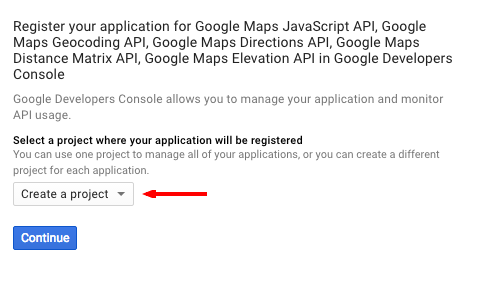
When you click “create a new project” be patient and you will be taken to the credentials screen. Complete this as below

Adding the HTTP referrer is very important to prevent quota theft because your api key is visible in the “view source” of your web page.
Google only allows each website a quota of free map loads per day. The quota is 25,000 loads per day which might be plenty for your site, but if other sites use your API, then you could find the quota used up.
Below is an example of a correct HTTP referrer. Take care because if you enter the wrong referrer url, your map will not work.
www.yourownsite.com – *.yourownsite.com/*
You will be given the option to “restrict the key” so it may not be used on other sites.

- You can find out more about best practices for securely using an API Key here.
- You can read Google’s full instructions here.
You should then copy your API key to use with your Google Map.


