Before you create a module to display a banner advert on your website, you’ll need to set up banners, clients and categories in the banner component.
Once you’ve done this, here’s the final step in the process…. displaying the adverts on the page.
How to show a banner advert in Joomla 3.1
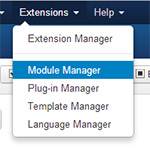
Choose Extensions > Module Manager
Click the green “New” button in the usual way.
From the options available, choose Banners.

You will be given 3 tabs.
Complete the Details Tab:
Title will help you find the advert again.
Show title: If you don’t want the title to show on the website, choose “hide”.
Position: Pick a position from the options available to you. This is where the advert will appear. For example you may have a side bar on your site which is in position “Right”.
Status: you can Unpublish a module so it is not showing on the website, but is ready prepared for later. Click Publish to make it show.
Access: Leave this as “Public” unless you only wish to have certain logged in groups see the advert. For example, if you choose “Registered” only registered users who have logged in will see the advert. The general public will not.

Now go to the Options Tab
Here you set options for which banners to display in your banner module.
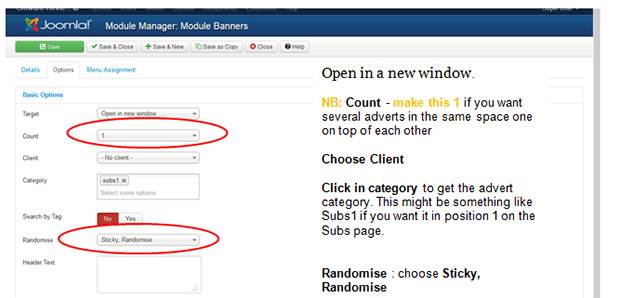
Target: This relates to the click-through link. If you want the website that the advert links to, to open in a new window, pick it here.
Count: This refers to the number of adverts that you want to show at one time in the module you are creating.
- If you want, say 3 adverts to display, but you only want one showing at a time, with the advert changing randomly when someone visits the page, set the count to 1.
- If you want 3 adverts to display at the same time (one under the other) set the count to 3.
Client: here you can choose to display adverts from a particular client. Choose the client from the drop-down options.
Category: You may wish to display adverts from a particular category. In that case, click into the category box and pick from those which are offered.
Search by tag: If you have set up keywords for the banner adverts you are using, you can allow searching by tag.
Randomise: The options are – Sticky, Randomise or Sticky, Ordered
Header text: This is the text to display above the group of adverts. Leave blank if you want no text.
Footer text: as above!
You can ignore the advanced Options section unless you wish to work with the styling of your adverts.
How to setup rotating banner adverts
Set up the options as above, Make sure you have set the count to 1
When you get to the Randomise option choose: Sticky, Randomise.
This will allow you to display several adverts in rotation (randomly) in the same space.
How to allocate the module to a page
Last step is to tell your module which page it should display on.
Go to the Menu Assignment tab.
The default setting is “On all pages”.
Choose from the options: Eg Only on the pages selected. Make sure you tick the appropriate box next to the page(s) you wish to display the advert on.
Save and you’re done!